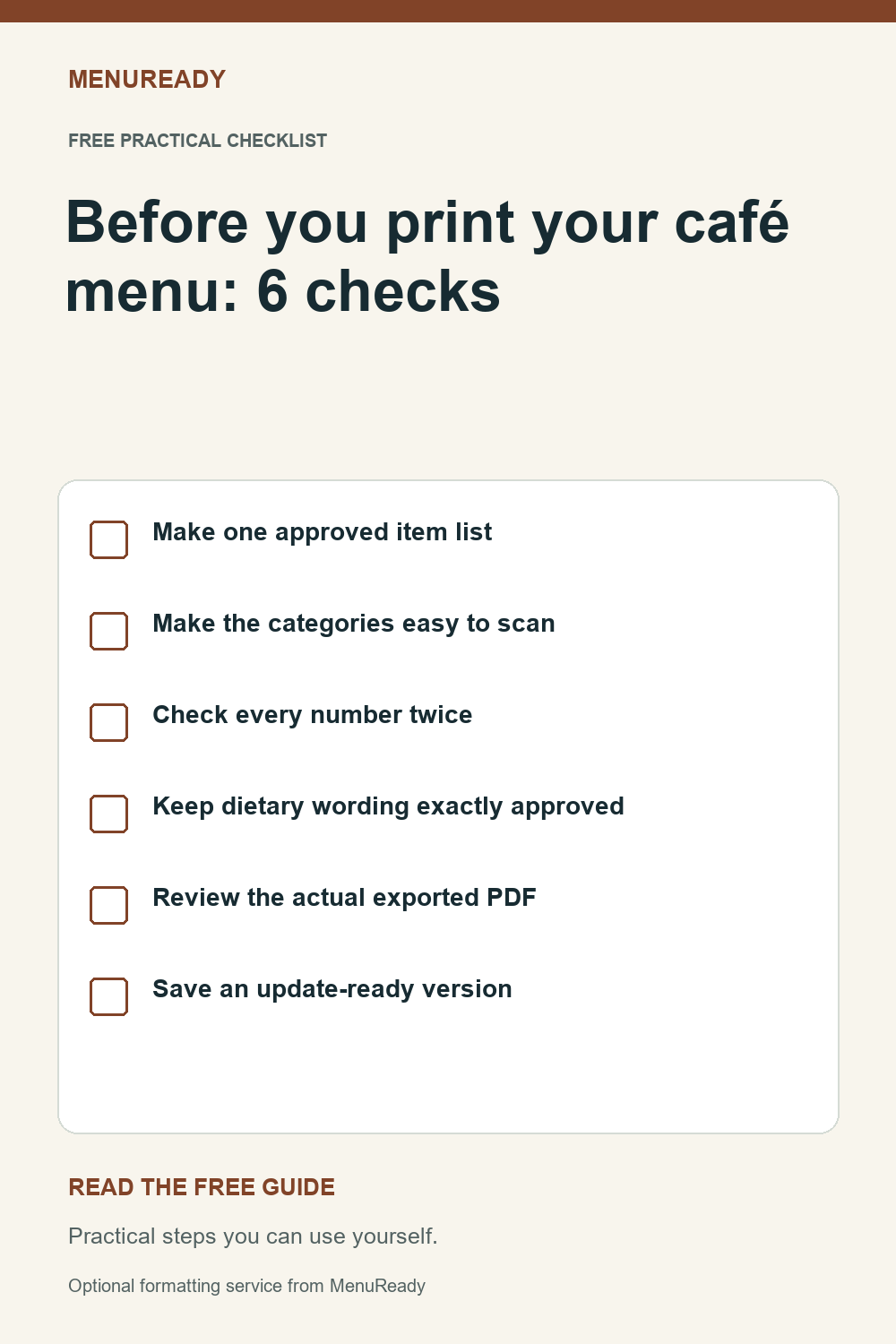
1. Make one approved item list
Keep one master list containing each category, item name, description, portion or size, price and approved label. Mark the date and person who approved it. Resolve conflicting prices before laying out the menu; a designer should not choose between two versions.
- Check spelling against your approved item names.
- List add-ons and size differences explicitly.
- Remove retired items from the master and the layout together.
2. Make the categories easy to scan
Give category headings a consistent style. Keep item names visually stronger than descriptions, and use the same price format throughout. Space between items often helps more than another decorative font.
- Use a repeatable order: item, description, price.
- Keep a heading with the first item below it.
- Check long names and descriptions for cramped lines.
3. Check every number twice
Compare the laid-out menu line by line with the approved list. Then do a separate pass looking only at prices, sizes and quantities. This second pass makes it easier to notice a transposed digit without getting distracted by the design.
- Verify all size and upgrade prices.
- Confirm any supplied fee or pricing notice with the owner.
- Do not fill missing prices by guessing.
4. Keep dietary wording exactly approved
Carry over only dietary and allergen statements that your business has verified and approved. A dish name or ingredient list does not establish whether a meal is safe for a particular guest. Flag missing or conflicting statements for the responsible person to resolve.
5. Review the actual exported PDF
Export at the intended page size, then open the PDF rather than relying on the editor preview. Check every page for clipped prices, missing symbols, unexpected blank pages and headings stranded at the bottom. Print a sample at actual size and read it in ordinary lighting.
- Confirm the printer's required margins and file settings.
- Check that the smallest text is comfortable to read.
- Open the screen version on a phone as well.
6. Save an update-ready version
Keep the editable file, approved item list and exported PDF together with a clear version date. When a price changes, update the source first and export again. Remove superseded copies from the places your team uses so an old menu does not return by accident.